

Installing a WordPress theme is one of the most essential skills every website owner should master. Whether you’re launching a new blog, redesigning a business site, or simply refreshing your online presence, knowing how to install a WordPress theme efficiently can save time and prevent technical headaches. With thousands of free and premium themes available, choosing the right one is just the beginning—actually installing and activating it is where many beginners stumble.
In this comprehensive guide, we’ll walk you through the entire process of how to install a WordPress theme, whether you’re using a free option from the official repository or uploading a premium theme file you’ve purchased. We’ll cover everything from accessing your WordPress dashboard to customizing your new design, ensuring your site not only looks professional but also functions smoothly. By the end, you’ll feel confident navigating theme installations and making your site truly your own.
Understanding WordPress Themes and Why They Matter
A WordPress theme controls the visual appearance and layout of your website. It’s the design template that determines how your content looks—from fonts and colors to the structure of your homepage and blog posts. Unlike plugins, which add specific functionalities, themes shape the overall user experience. This is why knowing how to install a WordPress theme is crucial for anyone serious about building a polished, effective online presence.
There are two main types of themes: free and premium. Free themes are available directly through the WordPress dashboard and are ideal for personal blogs or small business sites. Premium themes, often sold on marketplaces like ThemeForest or through developer websites, offer advanced features, better support, and unique designs. Regardless of the type, the installation process remains largely the same.
Preparing to Install a WordPress Theme
Before you begin, it’s important to ensure your website is ready for a new theme. First, always back up your site. This includes your database, files, and any custom code. If something goes wrong during installation, having a backup ensures you can restore your site quickly without losing content or functionality.
Next, check your WordPress version and ensure your hosting environment supports the theme you’re installing. Most modern themes require at least WordPress 5.0 or higher. Also, verify that your server meets the theme’s recommended requirements, such as PHP version and memory limits. Skipping these steps can lead to compatibility issues or broken layouts.
- Back up your website using a plugin like UpdraftPlus or your hosting provider’s backup tool.
- Check your WordPress version under Dashboard > Updates.
- Review the theme’s documentation for system requirements.
How to Install a WordPress Theme via the WordPress Dashboard
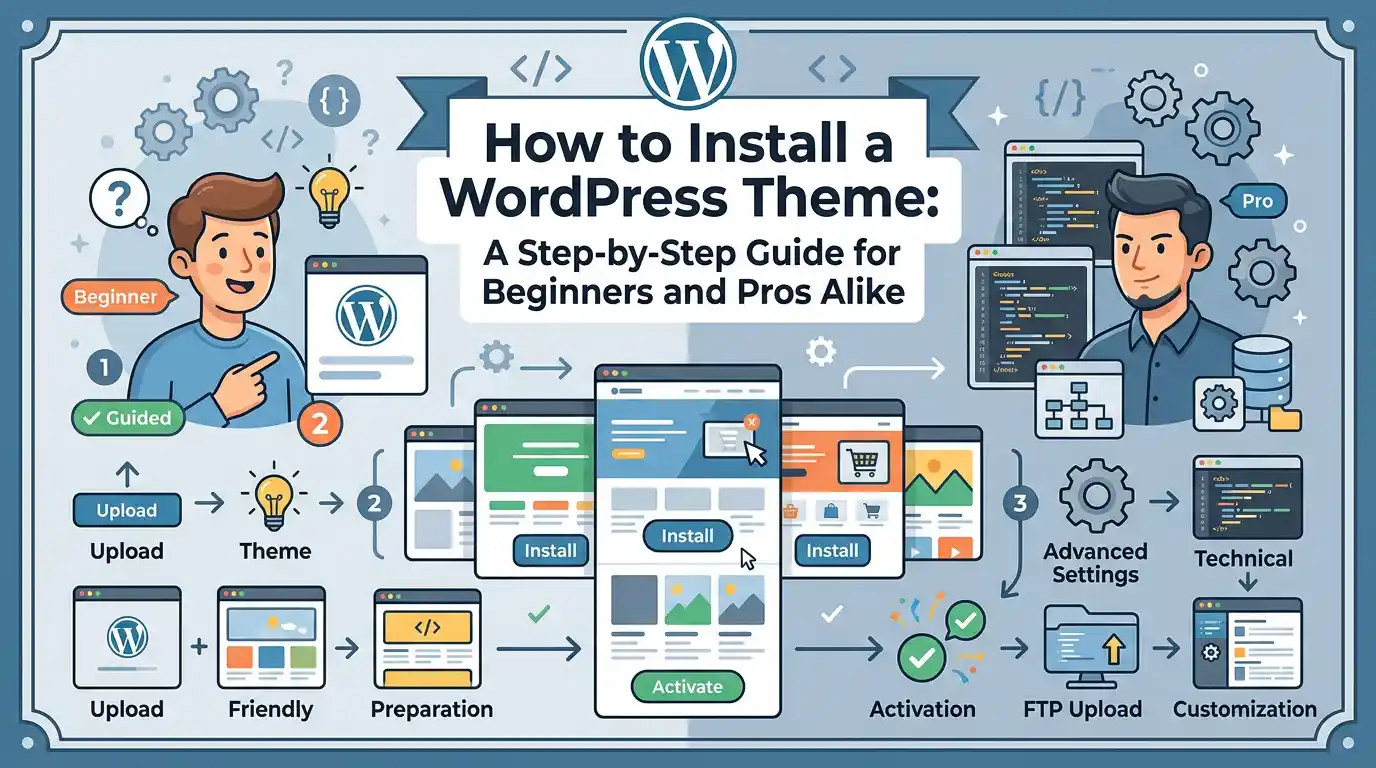
The easiest way to install a WordPress theme is through the built-in theme installer. This method is ideal for beginners and works for both free and premium themes, provided you have the upload file option enabled. Follow these steps to get started:
- Log in to your WordPress admin dashboard.
- Navigate to Appearance > Themes.
- Click the Add New button at the top of the page.
- Use the search bar to find a theme, or browse featured, popular, or latest themes.
- Hover over a theme and click Install.
- After installation, click Activate to apply the theme to your site.
This process takes just a few clicks and is perfect for users who want a quick, no-hassle way to change their site’s look. WordPress handles all the file uploads and configurations automatically, making it one of the safest and most reliable methods.
Installing a Premium WordPress Theme
Premium themes often come with additional features, professional support, and exclusive designs not available in free versions. However, they require a slightly different installation process. Here’s how to install a premium WordPress theme:
First, purchase a theme from a trusted marketplace or developer. Once purchased, you’ll receive a ZIP file containing the theme files. Do not extract this file—WordPress will handle the unzipping during installation.
Go back to your WordPress dashboard, navigate to Appearance > Themes > Add New, and click Upload Theme at the top of the screen. Select the ZIP file from your computer and click Install Now. After installation, click Activate to start using the theme.
Important: Always download premium themes from official sources. Third-party sites may host modified or infected versions that can compromise your site’s security.
Uploading a Custom Theme via FTP
In some cases, you may need to install a WordPress theme using FTP (File Transfer Protocol). This is common when working with custom-coded themes or when your hosting provider restricts the upload size for ZIP files.
To do this, use an FTP client like FileZilla to connect to your server. Navigate to the wp-content/themes directory and upload the extracted theme folder there. Once uploaded, go back to your WordPress dashboard, go to Appearance > Themes, and you should see the new theme listed. Click Activate to apply it.
Note: If you extract the ZIP file before uploading, make sure the main theme folder is directly inside the themes directory—not nested within another folder.
Post-Installation: Customizing Your New Theme
After installing and activating a WordPress theme, the next step is customization. Most modern themes come with a built-in Customizer, accessible from Appearance > Customize. Here, you can adjust colors, fonts, layouts, and more in real time.
Start by setting your site title, tagline, and logo. Then, explore the theme’s options for homepage settings, menu locations, and widget areas. Some themes also include demo content—importing this can give you a head start by setting up sample pages and layouts.
Don’t forget to test your site on mobile devices. Responsive design is crucial, and most themes are built to be mobile-friendly. However, always preview your site on different screen sizes to ensure everything looks perfect.
Troubleshooting Common Theme Installation Issues
Even with careful preparation, you might encounter issues when installing a WordPress theme. Here are some common problems and how to fix them:
- White screen after activation: This often indicates a PHP error. Enable debugging by adding
define('WP_DEBUG', true);to yourwp-config.phpfile. - Theme not appearing in the dashboard: Ensure the theme folder is correctly placed in wp-content/themes and has the proper file structure.
- Installation fails with “memory exhausted”: Increase your PHP memory limit by adding
define('WP_MEMORY_LIMIT', '256M');to yourwp-config.phpfile. - Plugin conflicts: Some plugins, especially caching or security tools, can interfere with theme installation. Temporarily deactivate them to test.
If issues persist, consult the theme’s support forum or contact your hosting provider. Most reputable theme developers offer support for installation-related problems.
Choosing the Right WordPress Theme
Knowing how to install a WordPress theme is only half the battle—choosing the right one is just as important. A poorly chosen theme can slow down your site, break functionality, or fail to meet your branding needs.
When selecting a theme, consider factors like responsiveness, SEO-friendliness, loading speed, and compatibility with popular plugins such as WooCommerce or Contact Form 7. Read user reviews, check demo previews, and test the theme on a staging site before going live.
Also, ensure the theme is regularly updated. Themes that haven’t been updated in over a year may not be compatible with the latest WordPress version, posing security risks.
Best Practices for Theme Management
Once your theme is installed and active, maintaining it properly ensures long-term performance. Here are some best practices:
- Keep your theme updated to benefit from security patches and new features.
- Use a child theme to make customizations. This prevents changes from being overwritten during updates.
- Avoid installing too many themes. Only keep the one you’re actively using to reduce clutter in your dashboard.
- Test theme updates on a staging site first.
- Monitor your site’s performance after switching themes using tools like Google PageSpeed Insights.
By following these guidelines, you’ll ensure your site remains fast, secure, and visually appealing.
Key Takeaways
- Installing a WordPress theme is a straightforward process that can dramatically improve your site’s appearance and functionality.
- You can install themes directly from the WordPress dashboard, upload premium ZIP files, or use FTP for more control.
- Always back up your site before making major changes.
- Choose themes that are responsive, well-supported, and compatible with your plugins.
- Use the Customizer to personalize your theme without touching code.
- Troubleshooting common issues like white screens or memory errors often involves checking server settings or enabling debugging.
Frequently Asked Questions (FAQ)
Can I install a WordPress theme without FTP?
Yes, the easiest way is through the WordPress dashboard using the built-in theme installer or the “Upload Theme” option for premium themes. FTP is only needed if you’re working with custom themes or have file size limitations.
Will installing a new theme delete my content?
No, installing a new theme does not delete your posts, pages, media, or plugins. However, custom widgets or menu settings may reset, so it’s wise to back up your site before switching themes.
Can I use multiple themes at the same time?
No, only one theme can be active at a time. However, you can install multiple themes and switch between them anytime from the Appearance > Themes section. This is useful for testing or preparing a new design before going live.
Do I need coding knowledge to install a WordPress theme?
No, you don’t need coding skills to install a theme. The standard installation process is designed to be user-friendly. However, customizing advanced features may require knowledge of HTML, CSS, or the use of a child theme.
Conclusion: Mastering the Art of Theme Installation
Learning how to install a WordPress theme is a fundamental skill that empowers you to take full control of your website’s design and functionality. Whether you’re a blogger, entrepreneur, or web developer, the ability to quickly and safely switch themes opens up endless creative possibilities. With the right tools, preparation, and understanding, you can transform your site from ordinary to exceptional in minutes.
Remember, the key to a successful theme installation lies in preparation—backing up your site, choosing a compatible theme, and following best practices. Once you’ve mastered the process, you’ll find that updating your site’s look is as simple as a few clicks. So go ahead, explore new designs, experiment with layouts, and make your WordPress site truly stand out.