

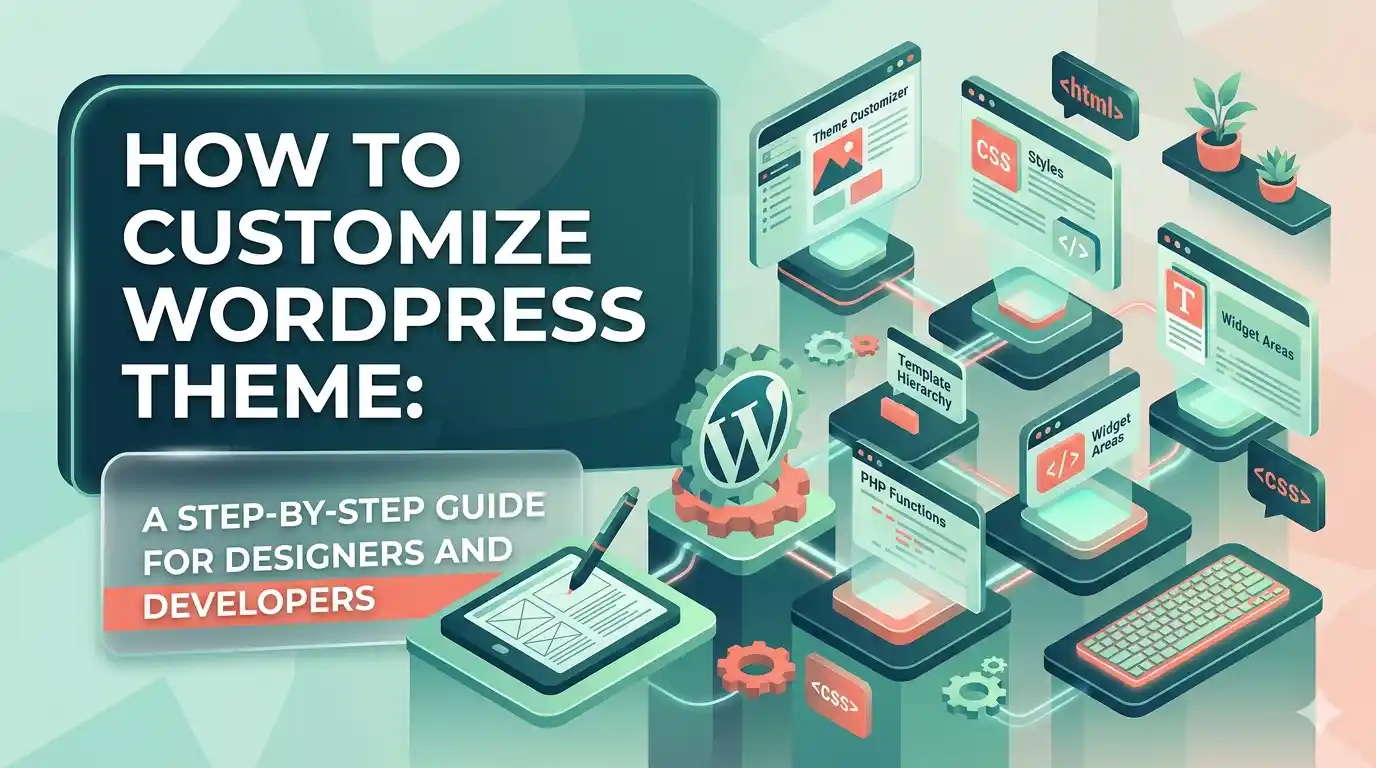
Customizing your WordPress theme allows you to create a unique, professional website that truly reflects your brand. Whether you’re a beginner or an experienced developer, knowing how to customize WordPress theme gives you full control over layout, design, and functionality. From adjusting colors and fonts to modifying templates and adding custom code, theme customization is essential for building a site that stands out. This comprehensive guide walks you through the most effective methods—whether you’re using the built-in Customizer, editing template files, or leveraging child themes—so you can make confident changes without breaking your site.
WordPress offers multiple pathways to customize your theme, each suited to different skill levels and goals. For those who prefer a visual approach, the WordPress Customizer provides an intuitive interface to tweak settings in real time. More advanced users may choose to edit theme files directly or create a child theme to safely implement customizations. No matter your level, understanding how to customize WordPress theme efficiently ensures your website remains functional, secure, and visually appealing over time.
Why Customizing Your WordPress Theme Matters
Your website’s theme is the foundation of its look and feel. A well-customized theme enhances user experience, improves SEO, and strengthens brand identity. When you customize your WordPress theme, you can align every element—from typography to navigation—with your business goals. This level of control is impossible with pre-built themes alone, especially if you’re using a generic template.
Moreover, customization enables you to optimize performance and accessibility. Removing unused features reduces page load times, while adjusting color contrast improves readability. These small changes can significantly impact how visitors perceive and interact with your site. Ultimately, knowing how to customize WordPress theme empowers you to create a digital space that is not only functional but also memorable.
Key Benefits of Theme Customization
- Enhanced visual identity and brand consistency
- Improved site performance and faster loading times
- Greater flexibility to adapt to future design trends
- Better user experience through intuitive navigation
- Increased SEO potential with clean, optimized code
How to Customize WordPress Theme Using the Customizer
The WordPress Customizer is the most user-friendly way to make changes to your theme. Accessible from your dashboard under Appearance > Customize, it allows you to preview updates in real time. This method is ideal for beginners who want to adjust settings without touching code.
Start by logging into your WordPress admin panel. Navigate to Appearance > Customize to open the theme customizer. From here, you can modify site identity (title, tagline, logo), colors, typography, and widget areas. Each change appears instantly on the right-hand preview pane, giving you immediate feedback. This real-time editing experience makes it easy to experiment and fine-tune your design.
For more advanced adjustments, such as adding custom CSS or modifying template structures, the Customizer includes a “Additional CSS” section. This feature lets you inject custom code directly into your theme’s stylesheet without editing core files. It’s a safe and effective way to personalize your site while maintaining compatibility with theme updates.
Popular Customizer Options
- Header and footer customization
- Widget placement and layout adjustments
- Background images and site identity settings
- Custom CSS for fine-tuned styling
- Menu structure and navigation design
How to Customize WordPress Theme with a Child Theme
For developers and advanced users, creating a child theme is the safest way to customize your WordPress theme. A child theme inherits the functionality and styling of the parent theme but allows you to make changes without altering the original files. This approach ensures that your customizations remain intact even after theme updates.
To create a child theme, first ensure your parent theme supports it—most modern themes do. Then, create a new folder in your wp-content/themes directory, name it something like yourtheme-child, and add a style.css file. In this file, include a header comment specifying the parent theme. Next, enqueue the parent theme’s stylesheet in the functions.php file of your child theme.
Once the child theme is active, you can safely override template files (like header.php or footer.php) by copying them from the parent theme into your child directory and making edits. This method gives you full control over layout, hooks, and functionality while preserving the integrity of the original theme. It’s the recommended approach for long-term customization projects.
Steps to Create a Child Theme
- Create a new folder in wp-content/themes
- Add a style.css file with theme metadata
- Enqueue parent theme styles in functions.php
- Copy and modify template files as needed
- Activate the child theme from the dashboard
How to Customize WordPress Theme by Editing Template Files
For those comfortable with code, directly editing theme template files offers the most granular control. This method allows you to modify HTML, PHP, and CSS to achieve precise design outcomes. However, it requires caution—any mistake can break your site.
Before editing, always back up your theme files. Then, access your theme folder via FTP or your hosting file manager. Locate the template files you wish to modify, such as single.php for blog posts or page.php for static pages. Open the file in a code editor and make your changes carefully.
For example, to change the blog post layout, you might edit the single.php file to remove sidebars or adjust the content width. Always test changes on a staging site first. If you’re unsure about a code change, consider using a child theme to avoid losing edits during updates.
Common Template Files to Customize
- header.php – Site navigation and branding
- footer.php – Copyright info and widgets
- index.php – Fallback for all content types
- page.php – Layout for individual pages
- functions.php – Theme functions and hooks
Customizing WordPress Theme with Plugins
If you prefer not to edit code, several plugins can help you customize your WordPress theme visually. These tools provide drag-and-drop interfaces, pre-built templates, and advanced layout options. They’re especially useful for page builders and designers who want speed and flexibility.
Popular plugins like Elementor, WPBakery, and Beaver Builder allow you to design pages and layouts without touching code. You can customize headers, footers, buttons, and entire sections using intuitive visual editors. These tools integrate seamlessly with most themes and offer responsive design controls.
Another powerful option is Customify or Kadence WP, which extend the Customizer with advanced features like custom blocks and dynamic content. These plugins make it easier to create professional-grade designs quickly. When choosing a plugin, ensure it’s compatible with your current theme and well-supported by the developer.
Best Plugins for Theme Customization
- Elementor – Drag-and-drop page builder
- Custom CSS Pro – Add custom styles safely
- Header Footer Code Manager – Insert scripts and tracking
- Advanced Custom Fields – Add custom content fields
- WPForms – Customizable contact forms
How to Customize WordPress Theme: Advanced Techniques
For developers, mastering advanced customization techniques unlocks full creative potential. This includes modifying theme hooks, adding custom post types, or integrating third-party APIs. These methods go beyond basic styling and allow you to tailor the core functionality of your site.
One powerful technique is editing the functions.php file to add theme support features. For example, you can enable custom logos, featured images, or navigation menus. You can also register sidebars or add custom scripts. Always use a child theme when modifying functions.php to prevent data loss during updates.
Another advanced method is creating custom templates. WordPress allows you to design unique page layouts by creating template files with specific names, such as page-fullwidth.php. These templates can be assigned to individual pages from the WordPress editor, giving you complete control over content presentation.
Advanced Customization Tools
- Custom post types and taxonomies
- Theme hooks and filters
- Custom template parts
- REST API integration
- Custom Gutenberg blocks
Best Practices for Customizing WordPress Theme
To ensure your customizations are stable and maintainable, follow these best practices. First, always use a child theme when making code changes. This protects your work from being overwritten during theme updates. Second, test every change on a staging site before applying it to your live website.
Keep your code clean and well-documented. Use comments to explain complex functions or CSS rules. This makes it easier to troubleshoot issues later. Also, avoid overloading your theme with unnecessary features—simplicity often leads to better performance and usability.
Regularly back up your site using a reliable plugin like UpdraftPlus or BackupBuddy. This ensures you can restore your site if something goes wrong. Finally, stay updated with your theme and WordPress core to benefit from security patches and new features.
Essential Best Practices
- Use a child theme for all code changes
- Test changes on a staging environment
- Back up your site regularly
- Keep code clean and commented
- Update themes and plugins promptly
Common Mistakes to Avoid When Customizing WordPress Theme
Even experienced developers can make mistakes when customizing a theme. One common error is editing the parent theme directly. This leads to lost changes after updates. Always use a child theme for modifications.
Another mistake is overloading the site with too many plugins. While plugins are useful, each one adds overhead and can slow down your site. Stick to essential tools and avoid redundancy. Also, avoid using inline styles or excessive JavaScript, which can make your code harder to maintain.
Finally, neglecting mobile responsiveness is a critical oversight. Always preview your site on different devices to ensure it looks great everywhere. Use the Customizer’s device preview tools or browser developer tools to test responsivity.
Frequent Customization Errors
- Editing parent theme files directly
- Using too many plugins
- Ignoring mobile responsiveness
- Skipping backups before changes
- Not testing on staging first
How to Customize WordPress Theme for SEO
Customizing your WordPress theme isn’t just about aesthetics—it also impacts search engine rankings. A well-structured theme with clean code, fast load times, and semantic HTML improves SEO performance. When learning how to customize WordPress theme, consider how changes affect search visibility.
Start by optimizing your theme’s structure. Use proper heading tags (H1, H2, etc.), descriptive alt text for images, and clean URLs. These elements help search engines understand your content. Also, ensure your theme is compatible with SEO plugins like Yoast SEO or Rank Math.
Another key factor is page speed. Customize your theme to reduce unnecessary scripts and images. Use lazy loading for media and minify CSS and JavaScript. Google rewards fast-loading sites, so performance should be a priority in your customization efforts.
SEO-Friendly Customization Tips
- Use semantic HTML5 elements
- Optimize images and enable lazy loading
- Minimize HTTP requests
- Ensure mobile-first design
- Integrate schema markup
How to Customize WordPress Theme for E-Commerce
If you’re building a WooCommerce site, customizing your theme is crucial for converting visitors into customers. A tailored e-commerce theme improves product visibility, checkout flow, and overall user experience. When learning how to customize WordPress theme for online stores, focus on conversion optimization.
Customize your product pages to highlight key information—such as prices, reviews, and call-to-action buttons. Use custom templates to create unique layouts for categories and archives. You can also modify the cart and checkout pages to reduce friction and increase completion rates.
Additionally, ensure your theme supports WooCommerce hooks and shortcodes. This allows you to add custom product filters, upsell banners, or related product displays. Always test your e-commerce customizations on multiple devices to ensure a seamless shopping experience.
E-Commerce Customization Essentials
- Optimize product page layout
- Customize cart and checkout flow
- Add trust badges and security icons
- Enable AJAX add-to-cart functionality
- Integrate with email marketing tools
How to Customize WordPress Theme: Mobile Optimization
In today’s mobile-first world, ensuring your theme works flawlessly on all devices is non-negotiable. Customizing your WordPress theme for mobile responsiveness involves adjusting layouts, fonts, and navigation to fit smaller screens. This improves usability and boosts engagement.
Start by using the Customizer’s mobile preview tools. Adjust font sizes, button spacing, and menu behavior for touch interfaces. Consider using a responsive framework like Bootstrap or Foundation if your theme supports it. Alternatively, use CSS media queries to fine-tune breakpoints.
Also, simplify navigation on mobile by converting dropdown menus into hamburger menus. Ensure all buttons are large enough to tap easily. Test your site using Google’s Mobile-Friendly Test tool to identify and fix issues.
Mobile Customization Checklist
- Use responsive images and flexible grids
- Optimize touch targets (buttons, links)
- Simplify navigation menus
- Reduce clutter and improve white space
- Test on real devices and emulators
How to Customize WordPress Theme: Performance Optimization
Performance is a critical factor in user experience and SEO. Customizing your WordPress theme to be fast and efficient involves removing bloat, optimizing assets, and streamlining code. When learning how to customize WordPress theme, prioritize speed without sacrificing design.
Start by identifying unnecessary features. Disable unused widgets, remove redundant scripts, and compress images. Use tools like Smush or ShortPixel for image optimization. Also, enable caching via plugins like WP Super Cache or W3 Total Cache.
Next, optimize your CSS and JavaScript. Minify files and load them asynchronously where possible. Consider deferring non-critical scripts to improve initial page load time. A faster site keeps visitors engaged and reduces bounce rates.
Performance Optimization Steps
- Minify CSS, HTML, and JavaScript
- Compress and lazy-load images
- Enable browser caching
- Use a content delivery network (CDN)
- Monitor site speed with tools like GTmetrix
How to Customize WordPress Theme: Accessibility Considerations
Making your WordPress theme accessible ensures that all users, including those with disabilities, can navigate and interact with your site. This not only broadens your audience but also improves compliance with legal standards like WCAG.
Start by using proper heading structures and ARIA labels. Ensure sufficient color contrast between text and backgrounds. Add skip links so users can bypass repetitive navigation. Also, make sure all interactive elements are keyboard accessible.
Test your site using accessibility tools like WAVE or axe. These tools highlight issues such as missing alt text or poor color contrast. Addressing these problems enhances usability and inclusivity.
Accessibility Best Practices
- Use semantic HTML elements
- Ensure keyboard navigability
- Provide descriptive alt text for images
- Maintain color contrast ratios
- Include skip navigation links
How to Customize WordPress Theme: Future-Proofing Your Design
Technology evolves rapidly, and so do design trends. When customizing your WordPress theme, consider future-proofing your site to avoid costly redesigns. This means using clean, modular code and avoiding outdated practices.
Use a child theme from the start, so future updates don’t overwrite your work. Choose themes based on their update frequency and community support. Also, avoid hardcoding content—use the WordPress editor or custom fields instead.
Finally, document your customizations. Keep a changelog and note any custom functions or CSS rules. This makes it easier to maintain and update your site over time.
Future-Proofing Strategies
- Use child themes for all changes
- Choose well-maintained themes
- Avoid hardcoded content
- Document all custom code
- Plan for scalability
Key Takeaways
- Customizing your WordPress theme gives you full control over design, layout, and functionality.
- Use the Customizer for quick, visual changes without code.
- Create a child theme to safely modify templates and functions.
- Plugins like Elementor offer drag-and-drop customization options.
- Always test changes on a staging site and back up your data.
- Optimize for mobile, performance, and accessibility during customization.
- Future-proof your site by using best practices and clean code.
Frequently Asked Questions
Can I customize my WordPress theme without coding?
Yes, you can customize your WordPress theme using the built-in Customizer, page builders like Elementor, or customization plugins. These tools provide visual interfaces to change colors, layouts, and content without writing code.
Is it safe to edit my theme files directly?
Editing theme files directly is not recommended because updates can overwrite your changes. Instead, use a child theme to preserve customizations. This ensures your modifications remain intact even after theme updates.
How often should I update my theme?
You should update your theme whenever a new version is released, especially if it includes security patches. Regular updates help protect your site from vulnerabilities and ensure compatibility with the latest WordPress version.