

Installing WordPress plugins is one of the most effective ways to extend your website’s functionality without writing code. Whether you’re building a blog, an online store, or a business portfolio, plugins can add features like contact forms, SEO tools, security enhancements, and more. This comprehensive guide will walk you through how to install WordPress plugins efficiently and safely, ensuring your site remains secure and high-performing. By following these proven methods, you’ll be able to enhance your site with minimal effort and maximum impact.
WordPress offers a vast ecosystem of plugins, with thousands available in the official WordPress Plugin Directory. These plugins are regularly updated, reviewed, and maintained by developers and the community. Understanding how to install WordPress plugins properly is essential for maintaining site stability and user experience. In this article, we’ll cover the official methods, best practices, troubleshooting tips, and advanced techniques to help you manage plugins like a pro.
Why You Should Use Plugins in WordPress
Plugins are the backbone of WordPress customization. They allow you to add functionality that would otherwise require extensive development work. From optimizing site speed to improving search engine visibility, plugins play a crucial role in modern web design.
Here are some key benefits of using plugins:
- Enhanced functionality: Add contact forms, social media feeds, sliders, and more.
- Improved performance: Use caching and optimization plugins to speed up your site.
- SEO improvements: Install tools like Yoast SEO or Rank Math to boost search rankings.
- Security: Protect your site from malware and unauthorized access with security plugins.
- E-commerce capabilities: Turn your site into a store with WooCommerce or Easy Digital Downloads.
However, it’s important to use only trusted, well-reviewed plugins to avoid conflicts and vulnerabilities. Always check compatibility with your WordPress version and theme before installation.
How to Install WordPress Plugins: Official Methods
The easiest and safest way to how to install WordPress plugins is through the WordPress dashboard. This method requires no technical knowledge and is ideal for beginners. Follow these steps to get started:
Step 1: Log in to Your WordPress Admin Dashboard
Access your website’s admin area by going to yoursite.com/wp-admin. Enter your username and password to log in. Once inside, you’ll see the dashboard, where all site management tools are located.
From here, you can manage posts, pages, media, themes, and plugins. The left-hand menu includes a section labeled Plugins—click on it to begin the installation process.
Step 2: Search for a Plugin
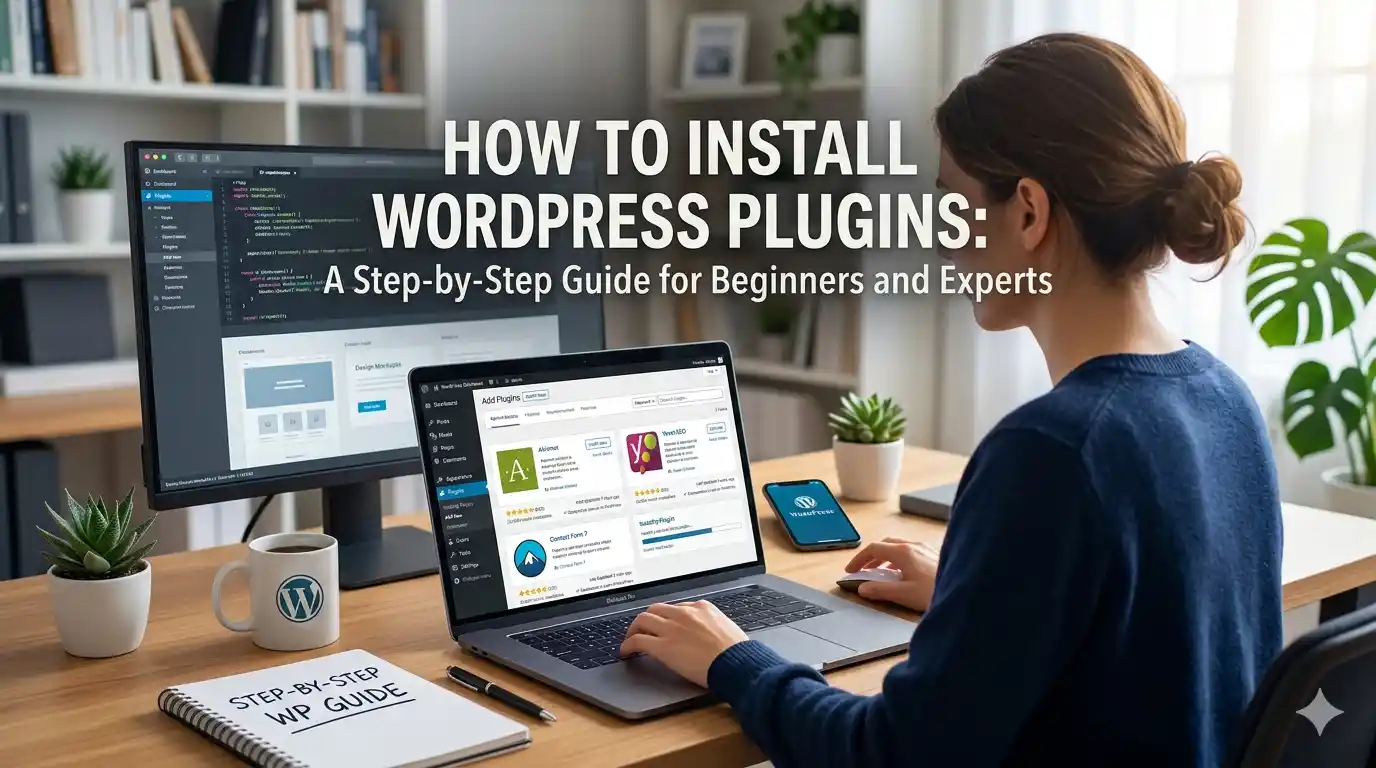
Click on Plugins > Add New in the dashboard menu. This opens the WordPress Plugin Directory directly within your admin panel. In the search bar, type the name of the plugin you want to install—such as “Contact Form 7” or “Akismet Antispam.”
The search results will display relevant plugins with ratings, number of active installations, and recent update dates. Choose a plugin with high ratings and regular updates for better reliability.
Step 3: Install and Activate the Plugin
Once you’ve found the desired plugin, click the Install Now button. WordPress will download and install the plugin automatically. After installation, a new button labeled Activate will appear.
Click Activate to enable the plugin. You’ll now see the plugin listed under Installed Plugins and may receive a notification or notice in the dashboard about setup instructions.
Step 4: Configure the Plugin (If Required)
Some plugins require initial setup. For example, a security plugin might ask for an API key, or a caching tool may need you to clear your site cache. Follow the on-screen instructions to complete the configuration.
After activation, check the plugin’s settings page—usually accessible from the left menu—to customize its features according to your needs.
Installing Plugins via Upload (ZIP Method)
If you’ve downloaded a plugin from a third-party developer or a premium marketplace, you may need to upload it manually. This method is known as the ZIP upload method and is useful for custom or premium plugins not available in the official directory.
Step 1: Download the Plugin ZIP File
Obtain the plugin file from a trusted source. Ensure it’s compatible with your WordPress version and theme. Premium plugins often come in a ZIP format that includes installation instructions.
Step 2: Go to Plugins > Add New
In your WordPress dashboard, navigate to Plugins > Add New. Hover over the top of the page and click the Upload Plugin button.
Step 3: Upload the ZIP File
Click Choose File, select the downloaded ZIP file, and click Install Now. WordPress will extract and install the plugin automatically.
Step 4: Activate the Plugin
After installation, click Activate Plugin to enable it. Then, follow any setup prompts to configure the plugin properly.
⚠️ Caution: Only upload plugins from reputable sources. Unverified plugins can contain malware or cause site crashes.
Best Practices for Managing WordPress Plugins
While installing plugins is straightforward, managing them effectively is key to maintaining a healthy website. Poorly managed plugins can slow down your site, cause errors, or even lead to security breaches.
Here are essential best practices to follow:
- Keep plugins updated: Regular updates fix bugs, patch vulnerabilities, and add new features. Enable automatic updates if your hosting supports it.
- Use only necessary plugins: Each plugin adds overhead. Remove unused or redundant plugins to improve performance.
- Test after updates: After updating a plugin, check your site for broken layouts or functionality.
- Backup your site: Always create a full backup before installing or updating plugins. Use tools like UpdraftPlus or your hosting provider’s backup solution.
- Check compatibility: Ensure the plugin works with your current WordPress version and theme.
It’s also a good idea to monitor plugin performance using tools like Query Monitor or Site Health in WordPress. These tools help identify slow or problematic plugins.
Troubleshooting Common Plugin Issues
Even with careful management, plugins can sometimes cause issues. Common problems include white screens, site crashes, or conflicts with other plugins. If you encounter such issues, follow these troubleshooting steps:
- Deactivate all plugins: Go to Plugins > Installed Plugins, select all, and choose Deactivate. Reactivate them one by one to identify the problematic plugin.
- Switch to a default theme: Sometimes, theme conflicts cause plugin issues. Temporarily switch to a theme like Twenty Twenty-Four to isolate the problem.
- Check error logs: Use your hosting control panel or FTP client to access server error logs. They often reveal the cause of crashes.
- Reinstall the plugin: Delete the problematic plugin and reinstall it. This can resolve corrupted files.
- Contact support: If the issue persists, reach out to the plugin developer for assistance.
Remember, how to install WordPress plugins isn’t just about adding them—it’s about managing them responsibly to ensure long-term site stability.
Advanced: Using Plugins in Multisite Networks
In a WordPress Multisite setup, you can manage plugins across multiple sites from a single dashboard. This is useful for network administrators managing blogs, departments, or regional sites.
To manage plugins in a Multisite network:
- Go to Network Admin > Plugins.
- You can activate plugins network-wide or allow individual sites to choose.
- Use Network Activate to enable a plugin on all sites.
- Use Network Deactivate to disable it everywhere.
This centralized control makes it easier to maintain consistency and security across your entire network.
Key Takeaways
- Installing plugins via the WordPress dashboard is the safest and easiest method.
- Always download plugins from trusted sources to avoid security risks.
- Keep plugins updated and remove unused ones to maintain site performance.
- Test plugins after installation and monitor for conflicts.
- Use backups and error logging tools to troubleshoot issues quickly.
Frequently Asked Questions (FAQ)
Can I install WordPress plugins without FTP access?
Yes, most plugins can be installed directly through the WordPress dashboard. However, some premium or custom plugins may require FTP access for installation, especially if they’re not in the official directory.
How do I know if a plugin is safe to install?
Check the plugin’s rating, number of active installations, update frequency, and user reviews. Plugins from the official WordPress directory are generally safer, but always read the description and developer credentials before installing.
What happens if two plugins conflict?
Plugin conflicts can cause site errors, broken layouts, or functionality issues. To resolve them, deactivate plugins one by one, switch to a default theme, and test your site. Identify the conflicting plugin and either remove it or seek an alternative.
Is it possible to install plugins on a WordPress.com site?
On WordPress.com, plugin installation depends on your plan. Free and personal plans have limited access. Business and e-commerce plans allow plugin installation, but only those approved by WordPress.com. Self-hosted WordPress (WordPress.org) gives full control over plugin installation.
How often should I update my plugins?
It’s best to update plugins as soon as updates are available, especially if they include security fixes. Enable automatic updates for minor releases to reduce manual effort while maintaining safety.
Conclusion
Mastering how to install WordPress plugins empowers you to build dynamic, feature-rich websites without coding. Whether you’re enhancing SEO, securing your site, or adding e-commerce functionality, the right plugins can make a significant difference. By following the official installation methods, adhering to best practices, and troubleshooting issues proactively, you ensure your site remains fast, secure, and user-friendly.
Remember, plugins are powerful tools—but with great power comes great responsibility. Choose wisely, manage regularly, and always prioritize your site’s performance and security. With this guide, you’re now equipped to confidently install, configure, and maintain WordPress plugins like a seasoned developer.